
Are you ready to transform your living room into the ultimate entertainment hub? Setting up IPTV Smarters Pro on your Samsung and LG Smart TVs is the easiest way to enjoy your premium iptv subscription without the need for extra devices. In this step-by-step guide, we will walk you through everything—from preparing your television to loading channels from the best iptv providers. Whether you are upgrading from an older smart iptv app or starting fresh, our goal is to make streaming your favorite TV shows and movies completely effortless for viewers across the UK and Ireland.
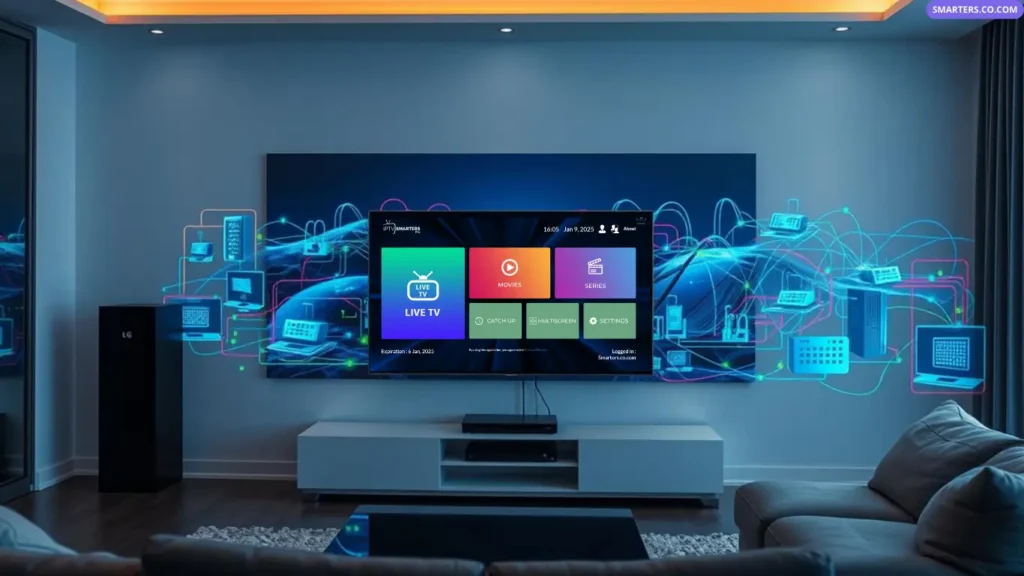
If you are looking to stream live TV and on-demand content directly on your television, IPTV Smarters Pro is undeniably the top application for the job. Thanks to its easy-to-use interface and advanced features, it has quickly replaced older apps like smart iptv as the go-to choice for millions of users.
In this section, we will explore exactly how to set up this powerful player on your Samsung or LG Smart TV, and share expert tips to guarantee a flawless viewing experience.
How to easily download and install the app on Samsung and LG TVs.
The system requirements for a buffer-free setup.
How to configure your premium iptv subscription using Xtream Codes.
Expert troubleshooting tips to optimize your daily streaming.
To get the most out of your setup, it is important to understand how the app works. IPTV Smarters Pro is a sophisticated media management tool. It delivers high-quality video playback, personalized settings, and a beautifully organized Electronic Program Guide (EPG).
However, remember that the app is completely empty upon download. To watch content, you must pair it with a reliable service from top iptv providers. Whether you are a standard user looking for the best iptv experience, or an iptv reseller setting up accounts for your clients, this app makes managing playlists incredibly simple.
Before jumping into the installation, let’s make sure your Smart TV is ready for the iptv ireland streaming revolution. You will need:
A Stable Internet Connection: A high-speed connection (preferably via an Ethernet cable) is crucial to handle HD and 4K streams.
Sufficient Storage: Ensure your TV has enough free space to install a new application.
Firmware Updates: Check your TV’s settings to ensure your operating system is up to date.
Setting up the app on your Samsung Smart TV (Tizen OS) is a breeze. For most users, the application is officially hosted right on the television’s built-in store, eliminating the need for complicated USB transfers.
Step-by-Step Samsung Installation Guide:
Grab your remote and press the Smart Hub (Home) button.
Navigate to the Apps section on your screen.
Select the Search icon (the magnifying glass) located at the top right.
Type “IPTV Smarters Pro” into the search bar.
Select the official application from the search results and click Install.
Once the download is complete, click Open to launch the app.
If you search the Samsung App Store and cannot find the app, it may be hidden due to regional restrictions. In this case, you have two alternative options:
Change Your TV Region: Temporarily change your Samsung TV’s location settings to the US or UK to access a broader app store.
USB Sideloading (Advanced): Download the specific Tizen widget file from a third-party website to a USB drive, and install it manually via your TV’s developer mode. (Note: For 99% of users, the direct App Store method works perfectly!)

If you own an LG Smart TV running WebOS, the setup is just as seamless. There is no need for complicated third-party installers or USB drives, which were often required for older smart iptv applications.
To ensure a smooth installation, verify that your TV is connected to the internet and that you have the latest software updates installed. Then, follow these simple steps:
LG Setup Guide:
Grab your remote and press the Home button.
Navigate to the LG Content Store.
Click the Search icon (magnifying glass) at the top of the screen.
Search for “IPTV Smarters Pro”.
Click Install to begin the download process.
Once the installation is complete, launch the app from your home screen to begin the initial setup.
Now that the application is successfully installed on your Samsung or LG TV, the real magic begins. As mentioned earlier, the app is simply an empty media player. To fill it with live channels, movies, and TV series, you must configure your user profile by adding your playlist.
To get the most out of your setup, we highly recommend sourcing your channels from the best iptv providers on the market. A premium iptv subscription will grant you access to stable servers, high-quality M3U links, and the highly efficient Xtream Codes API.
Launch the App: Open the IPTV Smarters Pro app on your TV and accept the Terms of Use.
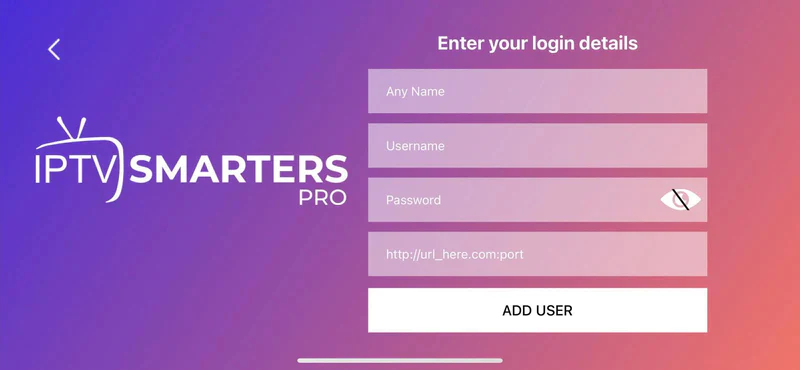
Select Login Method: Choose “Login with Xtream Codes API”. (This is much faster and more reliable than typing out a long M3U URL).
Enter Your Details: Input the credentials provided by your service:
Any Name: Give your profile a name (e.g., Ultra Streaming).
Username: Enter the username from your provider.
Password: Enter your secure password.
URL: Enter the server portal link.
Click “Add User”: Wait a few moments for the app to download your channels and Electronic Program Guide (EPG).
(Note: If you purchased your plan through an iptv reseller or a direct host for iptv ireland, these exact login details will be sent to you in your welcome email, often after you sign up for an IPTV free trial).
Once your playlist is fully loaded and you are logged in, you can easily tweak your profile settings to create a personalized viewing experience.
Favorites: Quickly add your most-watched sports networks or movie channels to your “Favorites” list for instant access.
Parental Controls: IPTV Smarters Pro features robust security settings. You can create a master PIN code to lock specific categories (like adult content or mature movies) to keep your family’s viewing experience safe.
Before fully committing, it is always a smart move to test your network and device. The best iptv services will gladly offer an IPTV free trial so you can check the channel quality yourself.
Once you receive your trial details, simply open the IPTV Smarters Pro app on your TV, select your preferred login method (Xtream Codes is highly recommended over the older M3U methods used by classic smart iptv apps), and input your URL.
Important tips during the loading process:
Double-check the URL and password for any typos (they are case-sensitive).
Give the app a few minutes to fully download the massive library of live channels, movies, and EPG data.
Browse through the categories to ensure all your required content is loading perfectly.
It is a universal rule in the streaming world: your iptv subscription is only as good as your home internet connection. Before configuring your device, it is always a great idea to check your current bandwidth using a free tool like Speedtest.net to ensure you meet the minimum requirements. Streaming live TV—especially 4K UHD sports across IPTV Ireland and the UK—requires a highly stable network. If your network isn’t configured correctly, you will likely experience frustrating buffering, lag, or sudden stream drops.
To guarantee a flawless viewing experience, you must optimize how your Smart TV connects to your router.
WiFi Setup & Optimization
While convenient, WiFi is vulnerable to interference. If you must use a wireless connection, make sure your router is placed in an open area and your TV receives a strong signal. A weak signal is the number one cause of buffering.
Pro Tip: Use a free WiFi analyzer app on your smartphone to find the least crowded WiFi channel in your neighborhood. This reduces interference and improves your streaming quality instantly.
If you want to completely eliminate buffering, switch to a hardwired Ethernet connection. It is significantly faster and far more stable than WiFi. By plugging an Ethernet cable directly from your internet router into the back of your Samsung or LG Smart TV, you bypass wireless network traffic jams.
Once your iptv subscription is live and your network is optimized, you can dive into the advanced features that make this application vastly superior to older smart iptv players.
Multi-Screen Viewing: Do you have two big football matches playing at the same time? Use the multi-screen feature to split your Smart TV screen and watch up to four channels simultaneously.
Catch-Up TV: If your service includes Catch-Up, you can easily go back in time via the EPG and watch shows or sports events you missed earlier in the week.
Parental Controls: Keep your household safe by setting up a master PIN code. This allows you to lock specific categories, channels, or mature VOD content.
Routine Maintenance: To keep the app running flawlessly, occasionally clear its cache in your Samsung or LG TV settings. This frees up memory and prevents unexpected crashes.
Even with the best iptv services, technology can sometimes act up. Here are quick fixes for the most common issues:
App Freezing or Crashing: Ensure your Smart TV has the latest firmware update installed. If the app still crashes, simply delete it and reinstall it from the App Store.
Channels Won’t Load: Double-check your internet connection. If the internet is working, your ISP might be blocking the server (a common issue for iptv ireland and UK users during live sports).
Privacy & Security: To protect your personal data and bypass ISP blocks, we highly recommend securing your network with a premium VPN. A VPN encrypts your traffic, ensuring your viewing habits remain 100% private.
Setting up IPTV Smarters Pro on your LG or Samsung Smart TV is the ultimate way to upgrade your home entertainment system. By combining a powerful, user-friendly media player with a premium iptv subscription, you gain instant access to a limitless world of global content right in your living room.
Whether you’re an everyday viewer looking to cut the cord, or an aspiring iptv reseller looking for the perfect app to recommend to your clients, this guide gives you everything you need for a successful setup.
Don’t wait—secure your IPTV free trial today, connect your TV, and experience the future of television!
1. Is IPTV Smarters Pro completely free? Yes! The application itself is completely free to download from the Samsung App Store and LG Content Store. You only pay for the iptv subscription provided by your host.
2. Can I use my account on multiple devices? This depends entirely on your iptv providers. Standard plans usually allow one connection at a time. If you want to watch on your Smart TV and your smartphone simultaneously, ask your provider for a multi-connection plan.
3. What is the difference between Smart IPTV and Smarters Pro? While Smart IPTV is a paid application (requiring an activation fee after a 7-day trial) that relies heavily on M3U links, IPTV Smarters Pro is completely free, features a more modern interface, and seamlessly integrates the faster Xtream Codes API.
4. Why is my screen going black during live sports? If your channel works perfectly all day but goes black during a Premier League match, your Internet Service Provider (ISP) is actively blocking the stream. Activating a VPN on your router will hide your traffic and fix this issue instantly.

We’re excited to help you dive into the advanced features of IPTV Smarters Pro. Once your playlist is loaded, these built-in tools will drastically improve your daily viewing experience, proving exactly why this app has overtaken older smart iptv platforms.
Multi-Screen Functionality: Are there two live matches playing at the same time? Use the multi-screen option to split your TV and watch up to four channels simultaneously.
Catch-Up TV: Missed an episode of your favorite show? If your iptv providers support it, the catch-up feature lets you replay broadcasts from the past few days directly through the EPG.
Favorites Management: Don’t waste time scrolling through thousands of channels. Pin your preferred iptv ireland sports and movie networks to your ‘Favorites’ tab for instant access.
To get the absolute best iptv experience, performance optimization is vital. High-speed internet is great, but managing your app properly prevents frustrating buffering and lag.
Adjust Quality Settings: If your household bandwidth is being heavily used, drop your stream quality from 4K UHD to standard HD to maintain a smooth, uninterrupted feed.
Clear Cache Quarterly: Smart TVs have limited memory. Go into your Samsung or LG TV settings every few months and clear the cache data for IPTV Smarters Pro. This simple maintenance task keeps the app lightning-fast.
App Updates: Always keep your app updated to the latest version. Developers regularly release patches that fix common bugs and improve streaming quality.
Protecting your personal data while streaming is crucial. While IPTV Smarters Pro is highly secure, there are two primary ways to protect your household and your privacy:
Parental Access Controls: Use the app’s built-in master password (PIN code) feature. This allows you to lock mature VOD content or specific adult channels, keeping your TV safe for the whole family.
Data Protection (Use a VPN): To ensure your streaming habits remain entirely private from your Internet Service Provider (ISP), we highly recommend running a reliable VPN alongside your iptv subscription.
We hope this guide has shown you exactly how easy it is to set up IPTV Smarters Pro on your Samsung or LG Smart TV. By bypassing complicated hardware and installing the app directly onto your television, you are just a few clicks away from a universe of premium content.
Whether you are a casual viewer looking to cut the cord, or an ambitious iptv reseller looking for the perfect setup guide for your clients, mastering this app is the key to a flawless streaming experience.
Get started with your IPTV free trial today, explore the features, and enjoy the ultimate television upgrade!
Frequently Asked Questions (FAQ)
1. What is IPTV Smarters Pro? It is a powerful, free media player application available on Samsung and LG Smart TVs that allows you to watch live TV, VOD, and Catch-up content provided by your IPTV host.
2. What are the system requirements for my Smart TV? You need a stable internet connection (preferably via Ethernet), the latest TV operating system update, and a few megabytes of free storage space to install the app.
3. Does the app include live channels? No. The app is strictly a media player. You must purchase an iptv subscription from a reliable provider and load the Xtream Codes credentials into the app to watch TV.
4. How do I fix buffering on my Smart TV? The most effective fix is to connect your Smart TV directly to your internet router using an Ethernet cable. Additionally, clearing the app’s cache and restarting your router can quickly resolve latency issues.
5. Can I manage multiple playlists? Yes! If you have subscriptions from different iptv providers, you can add multiple users/playlists within the app and easily switch between them from the home screen.
Ireland’s Premier IPTV Services Provider: The Ultimate Entertainment Experience Stream live sports, TV shows, and events with Ireland’s leading IPTV service. Enjoy 24/7 access at competitive rates.
© 2026 Ultra IPTV Ireland. All Rights Reserved.
Check out our shop to see what's available
Loading coupons...